How to Watch
MotoGP App & Timing Tools: A Beginner’s Guide
New to MotoGP? Our beginner’s guide to the official app and live timing screen will help you follow the race like a pro, even when the cameras are elsewhere.
Welcome to Your MotoGP Co-Pilot
So, you’re getting into MotoGP. Welcome! You’ve probably noticed it’s incredibly fast, with a lot happening all at once. It can feel a bit overwhelming, but there’s a brilliant, free tool that can help you make sense of it all: the official MotoGP app.
Think of it as your co-pilot for the race weekend. It sits in your hand and gives you the extra information you need to understand not just what’s happening on screen, but the whole story of the race. This guide will focus on the free features that will make your viewing experience much richer.
Getting Started is Easy
First things first, you need to get the app. Simply go to the Apple App Store or Google Play Store on your phone or tablet and search for ‘MotoGP’. You’re looking for the official one, which will have the recognisable logo.
Download and install it. The app has a premium subscription service with video, but you can ignore all of that for now. We are going to focus entirely on the brilliant free tools it offers every fan.
More Than Just Timing
Before we dive into the main event, it’s worth knowing that the app is your go-to source for the basics. You can find the full schedule for every race weekend, so you’ll know exactly when the PracticeSessions before qualifying where riders set up the bike; the combined times decide who goes straight to Q2.Read the full guide → sessions, QualifyingThe timed sessions that set the starting order, split into Q1 and Q2 for the front rows.Read the full guide →, and the main race are happening in your local time.
It’s also great for catching up on news and seeing the final results from any session you might have missed. It’s a handy little hub to keep you in the loop.

The Secret Weapon: Live Timing
The single most powerful free feature in the app is ‘Live Timing’. This is a screen that shows you the exact same data the teams and commentators are looking at, updated in real-time as the bikes are on track. It might look like a wall of numbers at first, but it’s your key to understanding the true pace of every single rider.
While the TV broadcast can only follow a few riders at a time, the Live Timing screen follows everyone. It tells you who is fast, who is fading, and where the next on-track battle is about to happen. Learning to read it is the quickest way to feel like an expert.
How to Read the Live Timing Screen
Let’s break down that screen of numbers into simple parts. During any session (practice, qualifying, or the race), open the app and find the Live Timing section.
The Basics: Who’s Where?
The main part of the screen is a list of all the riders. You’ll typically see their position (P1, P2, etc.), their race number, their name, and their most recent lap time. This gives you the basic running order at a glance.
Gap vs. Interval: Understanding the Distance
You’ll see two columns of time data that are crucial for understanding the race. They sound similar but tell you different things.
- Gap: This is the amount of time between a rider and the leader in first place. It tells you how far behind the front they are overall.
- Interval: This is the amount of time between a rider and the person directly in front of them. This is the number to watch for battles! If you see the Interval getting smaller, it means a rider is catching the person ahead.
Sectors and Colours: The Key to Pace
This is where it gets really interesting. A race track isn’t just one Long lap penaltyA penalty that sends a rider through a longer detour off the racing line, costing a second or so.Read the full guide →; it’s electronically divided into three parts, known as ‘sectors’. The timing screen shows you how fast a rider completes each of these sectors, and it uses colours to tell a story.
When a rider completes a sector, a coloured box will appear next to their name. Here’s what they mean:
- Red Sector: This is special. It means that rider has just set the fastest time of anyone in that specific sector so far in the session. A red sector means a rider is absolutely on the limit and pushing hard.
- Green Sector: This means the rider has just set their own personal best time for that sector. They might not be the fastest overall, but they are improving and finding more speed. A string of green sectors is a great sign.
- White or Yellow Sector: This simply means the rider didn’t improve on their own best time in that sector. It’s neutral information.
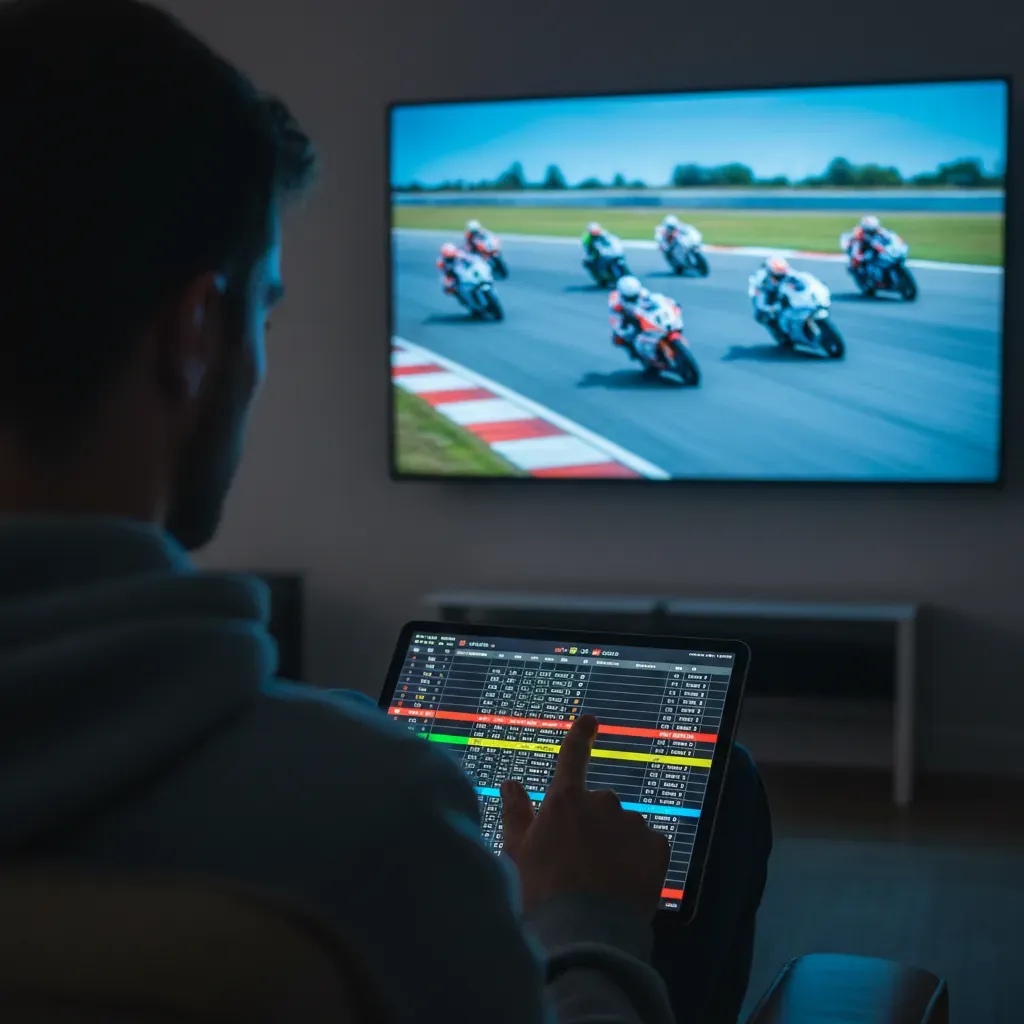
Putting It All Together: Follow Your Favourite
Now you can use this knowledge to become a super-fan. Let’s say you want to follow a rookie rider, like World Superbike champion Toprak Razgatlioglu in his debut season. The TV cameras might be focused on the fight for the lead, but you can see exactly how he’s doing.
Open the Live Timing screen and find his name. Is he setting green sectors? That tells you he’s learning the track and improving his own pace lap after lap. Is the ‘Interval’ to the rider in front of him shrinking from 0.8 seconds to 0.5, then 0.3? You know he’s hunting them down for an overtake, even if the cameras haven’t noticed yet!
You’re Ready to Watch!
That’s really all there is to it. With the official MotoGP app and a little knowledge of what the numbers and colours mean, you’ve unlocked a new layer of the sport. You can follow the progress of any rider, spot developing battles before they happen, and understand the flow of the race in a much deeper way.
Next time you settle down to watch a race, have your phone or tablet handy with the Live Timing screen open. You’ll be amazed at how much more you can see.

Quick Takeaways
- Download the free official MotoGP app to see schedules, news, and most importantly, the Live Timing screen.
- Live Timing shows every rider’s position and pace in real-time, giving you more information than the TV broadcast alone.
- A red sector means the rider was the fastest of anyone through that part of the track. A green sector means they set a personal best time.
- Watch the ‘Interval’ time to see the gap between a rider and the person directly ahead. If it’s shrinking, an overtake could be coming!